Friday, 17 April 2015

Remove From Address on "Send an Email" Page

Sometimes we can able to see 2 same email address in Send an email Page. Like below image.

"From" list will show all the emails from

            1. Email to Case
            2. Organization-Wide Addresses.

If you don't want to display the emails in "From" list, then we have to remove the address from Organization-Wide Addresses.

Setup -> administer -> Email Administration -> Organization-Wide Addresses. 

Remove the address from here.

This will help us to maintain the "From" list in a clean way.

Monday, 13 April 2015

How to setup Live Agent


For setting up live agent, we need to have license for live agent. In Developer Edition, we have 2 licenses.

Step 1 :


We need to enable the Live Agent.


Now, we can able to see the below list of setting in salesforce.


Step 2: Skills


Skills are used to track agent’s areas of expertise and to make sure that chats are routed to agents with the required skills. 


We need to give the name and we have to select the User, who has the correct skills and select the User and also we can select the profile. If we want to include some user of the particular Profile then we can use "Select User" option and if we want to use the profile that all the user going to use live agent then we can go profiles. Click Save button.

Step 3: Chat Buttons and Automated Invitations


we are going to configure the chat button and automated invitations, how customer can interact with the Live agent.


we can configure the behavior of the live chat notification and how the request should reach the Agent.


Second part is the site configuration, it is not necessary unless you need to have a pre-chat form or we need to setup the live chat button in Force.com sites. We can take a look when we have to configure the pre-chat form. Click on save.

Once Chat button is saved, you can see the HTML code of the button.

Step 4 :  Live Agent Configuration


Here we have 5 sections. First we can see about "Basic Configuration". 


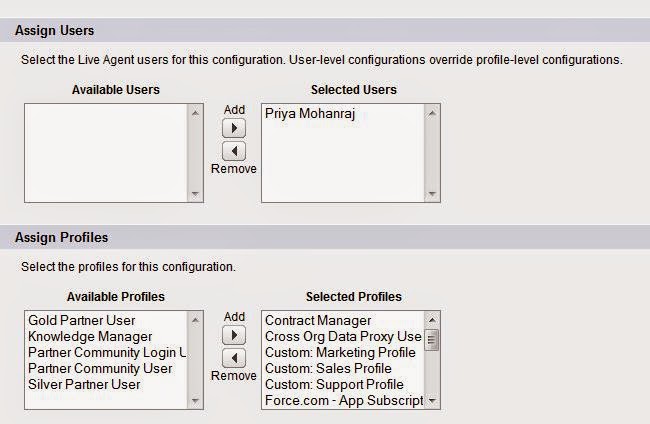
Next section is like Assign User and Assign Profiles.


So if you want the particular profile needs to be selected (means all the user under the profile going to use Live agent) else we can select individual user.

Next section is Supervisor Section


In this section, we are going to configure the supervisor for the Agent. So supervisor can send private message to Agent while they are in chat and also they can see what the Agent is typing with the customer.

The Last section is Chat Transfer.


So In this section we can transfer the chat to another Agent. This will help the Agents, if they are not able to answer for the particular queries.

Step 5: Live Agent Deployment


Once it is saved. It contains some HTML code. 

Step 6:


Copy the HTML code from Deployment and also from chat button setting. create one Html Page and put the script into the HTML Page.


Step 7: 


Enable the Live Agent License into the User.


To Make the Live Agent visible to the Agents, we have to setup Service Cloud console. For that you can see this link.

http://priyamohanraj.blogspot.in/2015/04/setup-service-cloud-console.html


Setup Service Cloud Console


Service Cloud Console is very useful for Customer support team, They can able to handle the knowledge, Phone, liveagent and cases in the same window.

To setup the service cloud console:

Goto setup -> Create - > Apps -> Click on New Button


Choose the Console in the list and click Next.


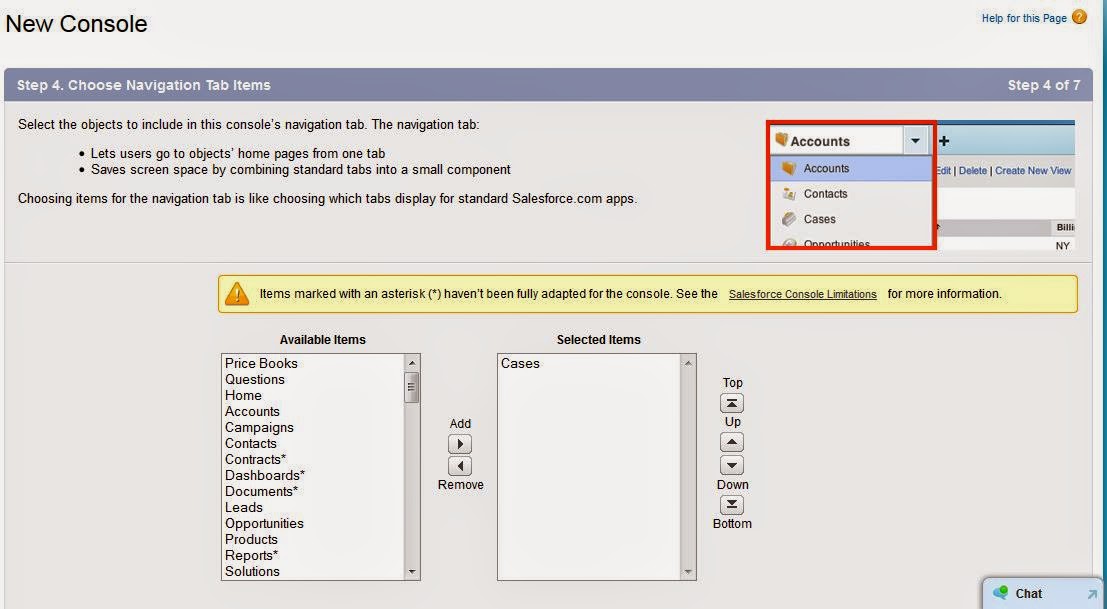
Give the Name of the console and then click next. If you want to insert the company logo you can, then click next.Choose the Navigation Tabs.


If you need any tabs, that CSS team needs to be navigate then we can selects the tabs, to display on the drop down list.


 Sub- Tab 


Sub-tab is used to display at the top of the record detail page. In this case, I have choose the Contact name. when you seeing the record the contact name will be displayed on the top the record like below.


Live Agent and Knowledge:


In this section, we can include the live agent and knowledge into the console. If we want to create new record during the chat,we can choose which records needs to be created.

Then is the profile visibility of the console.


Then click on save.

Now you can see the "Service Cloud Console" on the App list.


And the window will look like below.


Tuesday, 3 February 2015

JSON Deserialize


If Rest API returns the JSON string, below is the JSON String (array of data). if you have square bracket in your JSON then it is returning the array of the data.

String jsonString = '[ {
 "FirstName" : "test",
 "LastName" : "data1",
 "Email" : "test.data1@email.com",
 "Title" : "Mr"
 },
 {
 "FirstName" : "test",
 "LastName" : "data2",
 "Email" : "test.data2@email.com",
 "Title" : "Miss"
 },
 {
 "FirstName" : "test",
 "LastName" : "data3",
 "Email" : "test.data3@email.com",
 "Title" : "Mr"
 },
 {
  "FirstName" : "test",
 "LastName" : "data4",
 "Email" : "test.data4@email.com",
 "Title" : "Miss"
 },
 {
 "FirstName" : "test",
 "LastName" : "data5",
 "Email" : "test.data5@email.com",
 "Title" : "Mr"
 } ] ';

we have to create wrapper class to get or store the values from API.

Wrapper class :
global class wrapperclass_For_API
 {
        public string Firstname{get;set;} // case sensitive we have to give the name as there in JSON.
        public string Lastname{get;set;}
        public string Email{get;set;}
        public string Title{get;set;}       
}

In Apex class the below code can be used to get the JSON without parsing.

 List<wrapperclass_For_API> rs = (List<wrapperclass_For_API>)System.JSON.deserialize(jsonString, List<wrapperclass_For_API>.class);
List<wrapperclass_For_API> wrapperlist = new List<wrapperclass_For_API>();
// If we want to get the data, we can directly get the data from rs variable like below.
for(wrapperclass_For_API s : rs)
{
       wrapperclass_For_API wfa = new wrapperclass_For_API();
       wfa.Firstname = s.Firstname;
       wfa.Lastname = s.Lastname;
       wfa.Email = s.Emaill;
       wfa.Title = s.Title;
       wrapperlist.add(wfa);
}
// after that we can access the values through wrapper list.

If JSON string is not an array, it returns only single user data based on email Id as below

string JSON_string = {
  "FirstName" : "test",
 "LastName" : "data5",
 "Email" : "test.data5@email.com",
 "Title" : "Mr"
}

   Map<String, Object> m = (Map<String, Object>) JSON.deserializeUntyped(JSON_string);
   Object First_Name = (Object) m.get('FristName'); 
   system.debug('**********'+First_Name); // it returns "test"(value of the first name) in the log.
  

Sort Map in Apex Class


Convert the map in to list, to sort the map in salesforce. Below is the example for that.

public class sortmap{

public void mapsort()

{

      map<Integer,string> sortm = new map<Integer,string>();

      List<Integer> sortlist = new List<Integer>();

      sortm.put(10,'E');

      sortm.put(89,'F');

      sortm.put(1,'T');

      sortm.put(2,'Y');

      sortm.put(90,'R');

      system.debug('----------------'+sortm);

      // To sort this map

      sortlist.addall(sortm.keyset());

      sortlist.sort();

      for(Integer i : sortlist)

      {

                  system.debug('Sorting the Map in salesforce'+sortm.get(i));

       }

}
}

Thursday, 4 December 2014

How to limit the scope in batch class

While executing the batch, you can limit the scope of the batch class.

Example:

Below is the sample batch class

Batch Class:

global class BatchClass implements  Database.Batchable<Sobject>
{
                global Database.QueryLocator start(Database.BatchableContext BC){
                }
                global void execute(Database.BatchableContext BC, List<case> scope){
                }
                global void finish(Database.BatchableContext BC){
                }
}

While calling the batch class in another class

BatchClass exter = new BatchClass();
database.executebatch(exter,1);

In the execute method , we can give the parameter to limit the scope.

Tuesday, 16 September 2014

By Pass the Validation Rule while Updating record via trigger.

  For Example I have a validation rule in Opportunity Object, that we should not leave the type Field as blank. Below is the screen shot for that.


Validation rule for above message look like below.


I want to see the error message in the UI and not on trigger. If I want to update the record via trigger, I should not  see this error message.To overcome this, sometimes we want to bypass the validation rule.

To avoid validation rule for particular profile, we can give the validation rule like below.


we want to by pass validation rule when any Profile user attempt to execute the trigger, we can follow the below steps.

1. Create a check box field in Opportunity Object, say "By Pass Validation"

2. we need to change the validation rule like below.

3.When I change the subject of task it should update the Opportunity, Task trigger will look like below. In that trigger I have updated the opportunity field "By Pass Validation".

4. We need to create the workflow, because we have made the By Pass Validation field to true, which will always skip the validation. We want the validation to skip only the trigger.


Once the workflow is activated, It will skip the validation rule for the trigger not from UI.