Wednesday, 29 January 2014

Salesforce Code Scanner

Hi

The below URL is used to check your code Quality for your organization.

http://security.force.com/security/tools/forcecom/scanner

Tuesday, 28 January 2014

call Javascript via Apex Class


 Visualforce Page:


escape - This attribute which allows the HTML Tags and Javascripts. if we make escape = true, the character escape sequence displays as written.


Apex Class

Below is the screen shot for classes, where will have the string variable and calling the javascript on that variable.


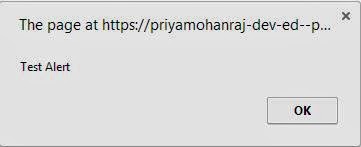
Output:

when you execute the above code, the below alert box will appear.


Sunday, 19 January 2014

Add Visualforce page in Message and Alert Section of the Home Page.

Step 1:
Create a Visualforce Page.


Step 2: In the Home Page Components, click edit on Message and Alert Section

Enter the below code in that section.

Output:


Thursday, 12 December 2013

Detail Page Link in Apex Class

Hi

below is the code where you get detail page link in Apex Class or trigger.

str= System.URL.getSalesforceBaseUrl().getHost();
str = str + '/'+ oldOpp.Id;
System.debug('---------System URL-----------------'+ str);

Tuesday, 3 December 2013

Creating Excel in Visualforce Page.

Create a visualforce page and add the content type attribute in the <apex:page>

<apex:page standardController="Opportunity" extensions="OpportunityReport_Extn" showHeader="true" sidebar="true" cache="true" contenttype="application/vnd.ms-excel#Opportunity_report.xls">
  <apex:pageBlock >
       <apex:pageblockTable value="{!generateReport}" var="oppty" id="tbl1">
           <apex:column value="{!oppty.Name}"/>
           <apex:column value="{!oppty.Id}"/>
           <apex:column value="{!oppty.StageName}"/>
           <apex:column value="{!oppty.Closedate}"/>
           <apex:column value="{!oppty.Type}" />
       </apex:pageblockTable>    
   </apex:pageBlock>
</apex:page>

In this page I have used controller, below is the code for that.

public class OpportunityReport_Extn {
    public List <Opportunity> getgenerateReport()
    {
       query = 'select Closedate,Name,Type,StageName,Id from Opportunity';    
        try
        {
            List<Opportunity> opplist = database.query(query);
            return opplist;          
        }
        catch (QueryException e)
        {
            ApexPages.addMessages(e);
            return Null;
        }      
   }
}

The above code will generate the Excel sheet.

Note: If your excel sheet contains some extra data, such us Months and month picklist, for that if you have used <apex:form> tag, remove that form tag in the visualforce page.

Friday, 15 November 2013

How to update an AccountTeamMember Via DataLoader


If you want to update the Account Team Member in Salesforce Via Dataloader

we have to use Account Share Object.

Account Share object will have data of AccountTeamMemeber and Owner of the Account.

While Updating we have to skip the owner data and we have to update only the AccountTeamMember data.

Below is the screen shot for Account Team Member Present in the Account.


For this Account when we extract the AccountShare Object from Dataloader, it has 2 records.


In the RowCause field you can identify, whether it is Team or Owner. you cannot update the data for Owner. Team Data can be updated.

so using data loader you can update the Team Data, which will automatically update the Access of Account Team Member data.